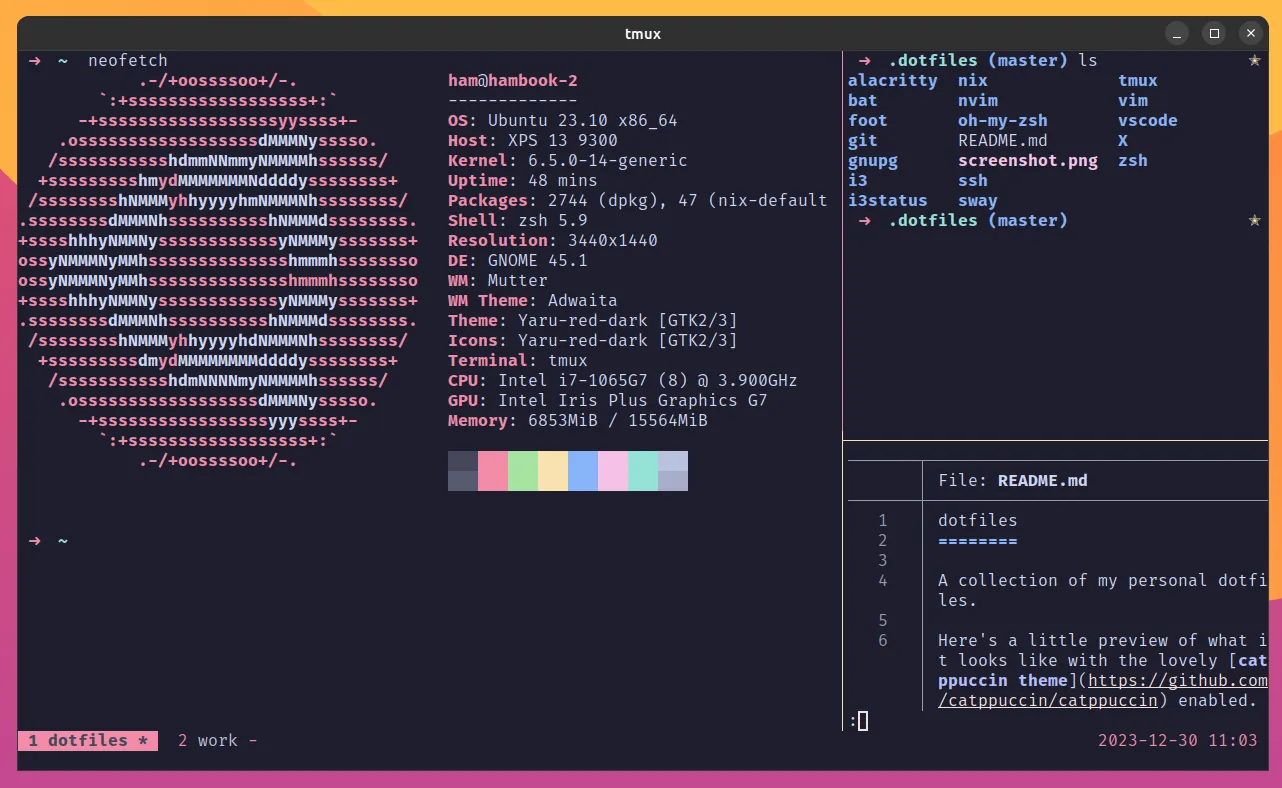
In my previous blog post I gave a quick and easy introduction to tmux and explained how to use tmux with a basic configuration.
If you’ve followed that guide you might have had a feeling that many people have when working with tmux for the first time: “These key combinations are really awkward!”. Rest assured, you’re not alone. Judging from the copious blog posts and dotfiles repos on GitHub there are many people out there who feel the urge to make tmux behave a little different; to make it more comfortable to use.
And actually it’s quite easy to customize the look and feel of tmux. Let me tell you something about the basics of customizing tmux and share some of the configurations I find most useful.
Customizing tmux is as easy as editing a text file. Tmux uses a file called tmux.conf to store its configuration. If you store that file as ~/.tmux.conf (Note: there’s a period as the first character in the file name. It’s a hidden file) tmux will pick this configuration file for your current user. If you want to share a configuration for multiple users you can also put your tmux.conf into a system-wide directory. The location of this directory will be different across different operating systems. The man page (man tmux) will tell you the exact location, just have a look at documentation for the -f parameter.
Less awkward prefix keys
Probably the most common change among tmux users is to change the prefix from the rather awkward C-b to something that’s a little more accessible. Personally I’m using C-a instead but note that this might interfere with bash’s “go to beginning of line” command1. On top of the C-a binding I’ve also remapped my Caps Lock key to act as Ctrl since I’m not using Caps Lock anyways. This allows me to nicely trigger my prefix key combo.
To change your prefix from C-b to C-a, simply add following lines to your tmux.conf:
# remap prefix from 'C-b' to 'C-a'
unbind C-b
set-option -g prefix C-a
bind-key C-a send-prefix
Intuitive Split Commands
Another thing I personally find quite difficult to remember is the pane splitting commands." to split vertically and % to split horizontally just doesn’t work for my brain. I find it helpful to have use characters that resemble a visual representation of the split, so I chose | and - for splitting panes horizontally and vertically:
# split panes using | and -
bind | split-window -h
bind - split-window -v
unbind '"'
unbind %
Easy Config Reloads
Since I’m experimenting quite often with my tmux.conf I want to reload the config easily. This is why I have a command to reload my config on r:
# reload config file (change file location to your the tmux.conf you want to use)
bind r source-file ~/.tmux.conf
Fast Pane-Switching
Switching between panes is one of the most frequent tasks when using tmux. Therefore it should be as easy as possible. I’m not quite fond of triggering the prefix key all the time. I want to be able to simply say M-<direction> to go where I want to go (remember: M is for Meta, which is usually your Alt key). With this modification I can simply press Alt-left to go to the left pane (and other directions respectively):
# switch panes using Alt-arrow without prefix
bind -n M-Left select-pane -L
bind -n M-Right select-pane -R
bind -n M-Up select-pane -U
bind -n M-Down select-pane -D
Mouse mode
Although tmux clearly focuses on keyboard-only usage (and this is certainly the most efficient way of interacting with your terminal) it can be helpful to enable mouse interaction with tmux. This is especially helpful if you find yourself in a situation where others have to work with your tmux config and naturally don’t have a clue about your key bindings or tmux in general. Pair Programming might be one of those occasions where this happens quite frequently.
Enabling mouse mode allows you to select windows and different panes by simply clicking and to resize panes by dragging their borders around. I find it pretty convenient and it doesn’t get in my way often, so I usually enable it:
# Enable mouse control (clickable windows, panes, resizable panes)
set -g mouse on
Stop Renaming Windows Automatically
I like to give my tmux windows custom names using the , key. This helps me naming my windows according to the context they’re focusing on. By default tmux will update the window title automatically depending on the last executed command within that window. In order to prevent tmux from overriding my wisely chosen window names I want to suppress this behavior:
# don't rename windows automatically
set-option -g allow-rename off
Changing the colors and design of tmux is a little more complex than what I’ve presented so far. As tmux allows you to tweak the appearance of a lot of elements (e.g. the borders of panes, your statusbar and individual elements of it, messages), you’ll need to add a few options to get a consistent look and feel. You can make this as simple or as elaborate as you like. Tmux’s man page (specifically the STYLES section) contains more information about what you can tweak and how you can tweak it.
Depending on your color scheme your resulting tmux will look something like this:

# DESIGN TWEAKS

# don't do anything when a 'bell' rings
set -g visual-activity off
set -g visual-bell off
set -g visual-silence off
setw -g monitor-activity off
set -g bell-action none

# clock mode
setw -g clock-mode-colour yellow

# copy mode
setw -g mode-style 'fg=black bg=red bold'

# panes
set -g pane-border-style 'fg=red'
set -g pane-active-border-style 'fg=yellow'

# statusbar
set -g status-position bottom
set -g status-justify left
set -g status-style 'fg=red'

set -g status-left ''
set -g status-left-length 10

set -g status-right-style 'fg=black bg=yellow'
set -g status-right '%Y-%m-%d %H:%M '
set -g status-right-length 50

setw -g window-status-current-style 'fg=black bg=red'
setw -g window-status-current-format ' #I #W #F '

setw -g window-status-style 'fg=red bg=black'
setw -g window-status-format ' #I #[fg=white]#W #[fg=yellow]#F '

setw -g window-status-bell-style 'fg=yellow bg=red bold'

# messages
set -g message-style 'fg=yellow bg=red bold'
In the snippet above, I’m using your terminal’s default colors (by using the named colors, like red, yellow or black). This allows tmux to play nicely with whatever color theme you have set for your terminal. Some prefer to use a broader range of colors for their terminals and tmux color schemes. If you don’t want to use your terminal default colors but instead want to define colors from a 256 colors range, you can use colour0 to colour256 instead of red, cyan, and so on when defining your colors in your tmux.conf.
Looking for a nice color scheme for your terminal?
If you’re looking for a nice color scheme for your terminal I recommend to check out my very own Root Loops. With Root Loops you can easily design a personal, awesome-looking terminal color scheme and stand out from all the other folks using the same boring-ass color schemes everyone else is using.
There are plenty of resources out there where you can find people presenting their tmux configurations. GitHub and other code hosting services tend to be a great source. Simply search for “tmux.conf” or repos called “dotfiles” to find a vast amount of configurations that are out there. Some people share their configuration on their blog. Reddit might have a few subreddits that could have useful inspiration, too (there’s /r/dotfiles and /r/unixporn, for example).
You can find my complete tmux.conf (along with other configuration files I’m using on my systems) on my personal dotfiles repo on GitHub.
If you want to dive deeper into how you can customize tmux, the canonical source of truth is tmux’s man page (simply type man tmux to get there). You should also take a look at the elaborate tmux wiki and see their Configuring tmux section if this blog post was too shallow for your needs. Both will contain up-to-date information about each and every tiny thing you can tweak to make your tmux experience truly yours. Have fun!