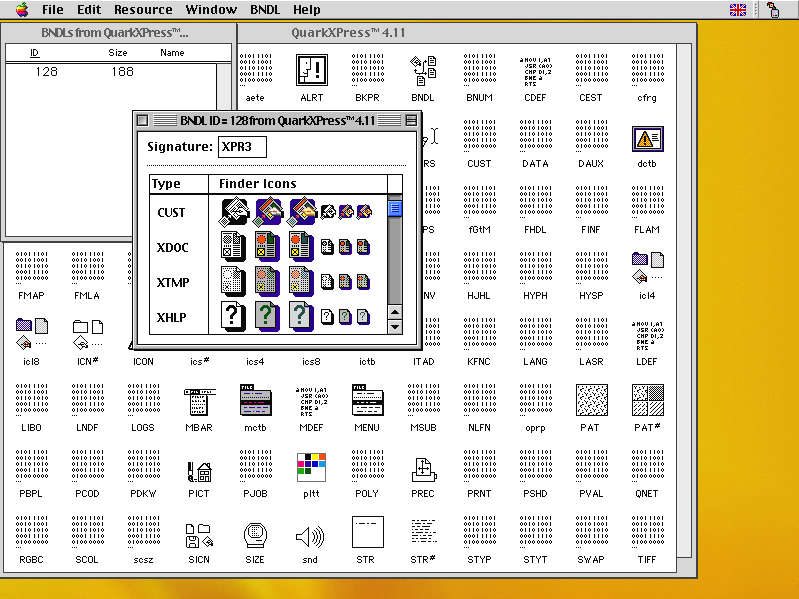
Programs running in windowing environments, applications as we used to know them, have more complicated requirements than those run from a command line. Rather than embed all the resources they require for windows, menus and the rest in a single file, Mac OS broke new ground by putting those into resources stored in the app’s resource fork.

This is QuarkXPress version 4.11 from around 2000, with its resources displayed in the resource editor ResEdit. Executable code was also stored in CODE resources, and every file contained type and creator information to support the illusions created by the Finder.
Mac OS X
When Mac OS X was designed, it switched to the bundle structure inherited from NeXTSTEP. Instead of this multitude of resources, apps consisted of a hierarchy of directories containing files of executable code, and those with what had in Mac OS been supporting resources. Those app bundles came to adopt a standard form, shown below.

The bundle name has the extension .app, and contains a single directory Contents. Within that, the executable code is in the MacOS directory, which may contain both the main executable for the GUI app and any bundled command tools provided. Another directory contains Resources, including the app’s custom icon, and components of its GUI. In some apps, there’s another directory of Frameworks containing dylibs (libraries).
There are also two important files, Info.plist and PkgInfo. The latter contains the same type and creator information inherited from Classic Mac OS, and apparently isn’t mandatory although it appears universal. The information property list is essential, as it specifies the names of the executable and its icon file in Resources, the minimum version of macOS required, type declarations of the app’s documents, version numbers, and more.
When running a command tool in macOS, its Mach-O executable is launched by launchd, whose purpose is to run code. Launching an app is more demanding, although the app’s executable is still launched by launchd. Before that can happen, macOS starts the launch process using LaunchServices and RunningBoard, which rely on information obtained from Info.plist and other components in the app bundle.
macOS
This structure remained stable until the introduction of code signatures in Mac OS X 10.5 Leopard in 2007. Accommodating those added a directory named _CodeSignature containing the signature in a CodeResources file. That includes code directory hashes (CDHashes) to check the integrity of the contents of the app bundle. Apps distributed by the App Store include a store receipt in another directory, _MASReceipt. Since 2018, when Apple introduced notarization, the ‘ticket’ issued by Apple can be ‘stapled’ into the app bundle as the file CodeResources.
Many apps come with additional items that might in the past have been installed by them in their Library/Application Support folders and elsewhere, but are now included in the app bundle. These can include the following directories:
- Library, containing folders of LaunchDaemons and LoginItems that would previously have been installed in either the main Library folder, or that in the user’s Home folder;
- XPCServices, for executable code that the app uses to provide specific services;
- Plugins, for some types of app extension (Appex);
- Extensions, for other types of app extension, including app intents.
You may also come across other components, including a version.plist in Apple’s apps.
This centralisation of components in the app bundle has brought several benefits. Being self-contained, apps are easier to install and update, and cleaner to remove. Their components are less likely to go missing, and most of all they’re held within the protection of the app’s signature and notarisation, an important improvement in security.
Assembling these into a diagram shows how the anatomy of an app has grown over the last few years.

Components shown in pale yellow are either mandatory or essentially universal. Those shown in green are found in apps distributed through the App Store, while that shown in blue is the stapled notarisation ticket (optional). You will also see additional folders and components such as Automator workflows, scripts, and others.
There is no difference in structure between apps built for current Intel and Arm architectures. That’s because binaries in the MacOS folder (and executable code in other directories like Frameworks, XPCServices and Plugins) contain platform-specific code in a single Mach-O executable. Thus, an app that’s Universal and runs native on both architectures includes code for both in its single ‘fat’ code file, and they even have separate signatures stored within common files.