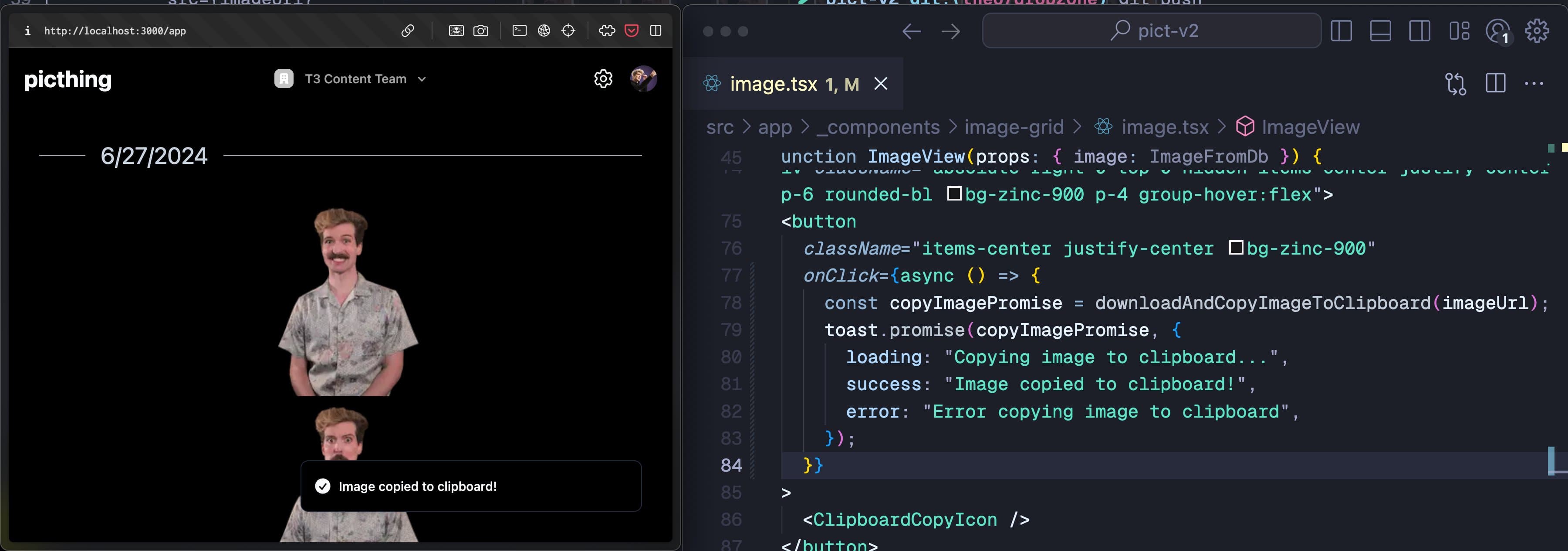
Back in 2023, I decided to build a toast library called Sonner. It’s now downloaded over 7,000,000 times per week from npm and used by companies like Cursor, X, and Vercel. It’s also the default toast component in shadcn/ui.
When I was making it, the toast “market” was already crowded. So what made Sonner stand out? Why did people choose it over proven alternatives?
Let’s start with the name.
Naming
My thinking was that naming things based on their function feels cheap.
react-toast, react-snackbar, react-notifications, they all feel boring and generic to me. I wanted something more unique and elegant.
The way I came up with Sonner is I looked up French words related to notifications. Sonner, which means “to ring” was one of them.
- 1. to sound
- 2. to ring
Sonner la cloche (Ring the bell).Sonner a la porte (Give a ring).
While I’m sacrificing discoverability and clarity, it feels elegant to me. It’s also a name that feels different, which is important if I want it to stand out.
Animations
I believe Sonner took off immediately because of the stacking animation which was done by some companies before, but never open sourced.
This is what made people fall in love with this tiny component, it just felt right when you saw it animate. Here’s Theo’s reaction to it for example:
Theo’s reaction to Sonner’s animations.
Theo’s reaction to Sonner’s animations.
I knew I had to highlight this motion when introducing the library so I experimented with a few different announcement videos where the focus was on that stacking animation. Here’s what I ended up with back in 2023:
You can view the tweet here.
You can view the tweet here.
When it comes to the code, I initially used CSS keyframes for the animations, but they aren’t interruptible. Try quickly adding a few toasts below. As you add more toasts, the older ones jump into their new position instead of smoothly transitioning.
Notice how toasts jump into place when you add them quickly.
That’s one downside of keyframes: you can’t smoothly change the end position while the animation is running. CSS transitions, on the other hand, can be interrupted and retargeted, even before the first transition has finished, so I used them instead:
To mimic the enter keyframes, I use a useEffect hook to set mounted to true after the initial render. This makes the toast start at translateY(100%) and transition to translateY(0). The styles are applied through data attributes.
React.useEffect(() => {
  setMounted(true);
}, []);

//...

<li data-mounted={mounted}>
.sonner-toast {
transition: transform 400ms ease;
}
[data-mounted="true"] {
transform: translateY(0);
}
[data-mounted="false"] {
transform: translateY(100%);
}This can now also be solved with the @starting-style CSS at-rule, which would make the implementation much simpler. I might update the code to use this soon.
Stacking toasts
To create the stacking effect, I multiply the gap between toasts by the toast’s index to get the y position. Each toast uses position: absolute to simplify the stacking. I also scale them down by 0.05 * index to create a sense of depth.
Here’s the simplified CSS for it:
[data-sonner-toast][data-expanded="false"][data-front="false"] {
  --scale: var(--toasts-before) * 0.05 + 1;
  --y: translateY(calc(var(--lift-amount) * var(--toasts-before)))
    scale(calc((-1 * var(--toasts-before) * 0.05) + 1));
}
This works great until you have toasts with different heights - they won’t stick out evenly. The fix is to make all the toasts the height of the toast in front when in stacked mode. Here’s how the toasts would look with different heights:
Swiping
Another Sonner feature is the swipe gesture. This is especially useful on devices where people are already used to swiping to dismiss notifications.
You can also swipe on desktop.
The toasts can be swiped down to dismiss. That’s just a simple event listener on the toast which updates a variable responsible for the translateY value.
// This is a simplified version of the code
const onMove = (event) => {
  const yPosition = event.clientY - pointerStartRef.current.y;

  toastRef.current.style.setProperty("--swipe-amount", `${yPosition}px`);
};
The swipe is momentum-based, meaning you don’t have to drag the toast past a specific threshold to dismiss it. If the swipe is fast enough, the toast will still be removed even if the distance is short, because the velocity is high enough.
Notice how just a quick swipe is enough to dismiss the toast.
I check how much time has passed since the drag started and divide the absolute drag distance by the elapsed time to get the velocity. If the swipe amount is greater than the threshold or velocity is higher than in this case 0.11, I remove the toast.
const timeTaken = new Date().getTime() - dragStartTime.current.getTime();
const velocity = Math.abs(swipeAmount) / timeTaken;

// 0.11 is just a number that I ended up on through simple trial and error
if (Math.abs(swipeAmount) >= SWIPE_THRESHOLD || velocity > 0.11) {
  removeToast(toast);
}
Expanding toasts
When the toasts are in stacked mode, you can hover over the toast area to expand and see all the toasts:
I calculate each toast’s expanded position by adding the heights of all preceding toasts and the gap between them. This value becomes the new translateY value when the user hovers over the toast area.
const toastsHeightBefore = React.useMemo(() => {
  return heights.reduce((prev, curr, reducerIndex) => {
    // Calculate offset up until current toast
    if (reducerIndex >= heightIndex) {
      return prev;
    }

    return prev + curr.height;
  }, 0);
}, [heights, heightIndex]);

// We then use this value as a CSS variable, "--offset": ${offset}px
const offset = React.useMemo(
  () => heightIndex * GAP + toastsHeightBefore,
  [heightIndex, toastsHeightBefore],
);
You can also use this expanded mode as the default behavior if you want to ensure that all toasts are visible at all times. This can be enabled by simply adding the expand prop on the <Toaster /> component:
Developer experience
This was also extremely important to get right. If the component is not easy to use, people will give up before they even try it. Developer experience is key.
That’s why I built a fully custom documentation site for Sonner, where you can find lots of interactive examples with code snippets that are ready to be used.
This lets people touch the product, play with it, get familiar with it, and understand how it works before they even use it in their own projects.
Good documentation and clear instructions can drastically lower the barrier to use any product, not just a component. I think it’s often overlooked and done as an afterthought when it shouldn’t be.
But let’s also cover the technical details of the developer experience.
To avoid using React’s Context, I manage the state via the Observer Pattern. I subscribe to the observable object in the <Toaster /> component. Whenever the toast() function is called, the <Toaster /> component (the subscriber) is notified and updates its state. I can then render all the toasts using Array.map().
function Toaster() {
  const [toasts, setToasts] = React.useState([]);

  React.useEffect(() => {
    return ToastState.subscribe((toast) => {
      setToasts((toasts) => [...toasts, toast]);
    });
  }, []);

  // ...

  return (
    <ol>
      {toasts.map((toast, index) => (
        <Toast key={toast.id} toast={toast} />
      ))}
    </ol>
  );
}
To create a new toast, I simply import toast and call it. There’s no need for hooks or context, just a straightforward function call that can be done from anywhere.
import { toast } from "sonner";

// ...

toast("My toast");
People often praise Sonner’s promise API. You simply pass in a promise, specify what the toast should say in all 3 states, loading, success, error, and that’s it. Most engineers find it pretty intuitive.
Sonner is so cracked holy shit. The `toast.promise` API is SO good. Never had such good toast states with so little code. It’s like React Query for toasts and I didn’t know I needed it until now.

The API design is inspired by react-hot-toast. The state management is different, but the way you render the toasts is very similar to that library, because it’s simply very good. Timo did a great job there.
The big little details
Some smaller things, while smaller, and harder to notice, are still important. They are what makes Sonner feel the way it does. Here are a few of them.
By default the toast disappears after 4 seconds unless you hover over it. But what if a toast is triggered and the user switches to a different tab? 4 seconds would pass and the toast would never be seen.
That’s why there’s a useIsDocumentHidden hook that checks if the document (tab) is hidden and if so, it will pause the timer. A small detail, that improves the experience.
Notice how the toast doesn’t disappear when the tab is inactive.
The code for this is relatively simple and leverages the document.hidden property.
export const useIsDocumentHidden = () => {
  const [isDocumentHidden, setIsDocumentHidden] = React.useState(
    document.hidden,
  );

  React.useEffect(() => {
    function handleVisibilityChange() {
      setIsDocumentHidden(document.hidden);
    }

    document.addEventListener("visibilitychange", handleVisibilityChange);
    return () =>
      document.removeEventListener("visibilitychange", handleVisibilityChange);
  }, []);

  return isDocumentHidden;
};

// ...

const isDocumentHidden = useIsDocumentHidden();

if (isDocumentHidden) {
  pauseTimer();
}
It’s one of those things that unless you’ve implemented it yourself before, you probably won’t notice, and that’s okay, because it’s the expected behavior. An inactive tab is well... inactive, so it feels obvious that the toasts should freeze while the tab is not in use.
Another interesting one is maintaining correct hover state.
The hover state depends on whether you are hovering over one of the toasts, but there are also gaps between the toasts that don’t belong to any toast. Hovering over those areas would make the toasts lose their hover state.
To address this, I add an :after pseudo-element to fill these gaps to maintain a consistent hover state.
The dark bars show where the pseudo-elements are added to fill in the gaps.
Another one: What if, while dragging the toast, the pointer goes outside of it? The drag event would stop, because you are not hovering over the toast anymore. So the correct pointer capture needs to be maintained.
Once I start dragging, I set the toast to capture all future pointer events. This ensures that even if the mouse or our thumb moves outside the toast while dragging, the toast remains the target of the pointer events. As a result, dragging remains possible, even if the pointer is outside of the toast, leading to a better user experience.
Notice how the toast still responds to drag events even if the pointer is outside of it.
One thing that can also be seen on the video above is friction. Instead of just not allowing the toast to be dragged upwards, you can still drag it, but it will slow down and eventually stop. It’s nicer than just stopping the toast immediately.
Not all of these details are noticed by the user, but that’s okay. These details add up. Together, they create a component that feels just right.
“All those unseen details combine to produce something that’s just stunning, like a thousand barely audible voices all singing in tune.
”Paul Graham, Hackers and Painters
The less details users notice, the better. It means the experience is intuitive. They don’t have to think about how it work and can focus at the task at hand. They appreciate it more that way, even if only on a subconscious level.
Why is Sonner successful?
There are two main reasons.
One is that the developer experience is good. No hooks, no context, you insert <Toaster /> once and you call toast() to create a toast. That’s it.
Two is that it looks good. It has nice defaults and good animations. This is the real differentiator. People simply like beautiful things. Beauty is generally underutilized in software so you can use it as leverage to stand out.
If you want to learn how to build components like Sonner, and make your work stand out as well, you can check out my animation course:
Check out animations.dev