One of the primary aims of most malware is to trick you into giving it your password. Armed with that, there’s little to stop it gathering up your secrets and sending them off to your attacker’s servers. One of your key defences against that is to know when a password request is genuine, and when it’s bogus. By far the best way to authenticate now is using Touch ID, but many Macs don’t support it, either because they can’t, or because their keyboard doesn’t, and there are still occasions when a genuine request may not offer it. This article looks at the anatomy of a range of genuine password requests. Note that these dialogs aren’t generated by the app, but come from the macOS security system, hence their consistency.
Traditional, no Touch ID
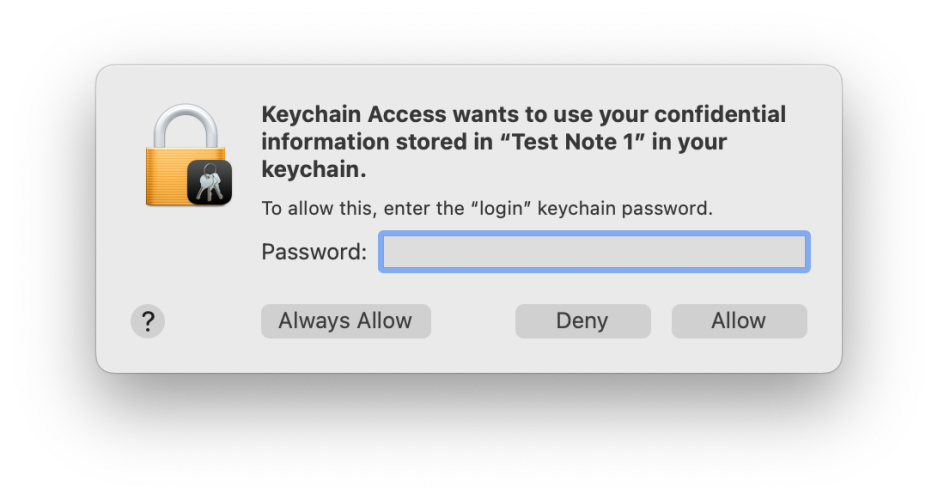
This authentication dialog is very important: although malware might try to forge it, it contains distinctive features you should always look for:
- The icon consists of a locked padlock, on which is superimposed a miniature icon representing the app or component that has asked to access the keychain.
- The bold text names the app or component that has called for keychain access, and states which item it’s asking to access: here, a named secure note.
- The smaller lettering specifies that it’s asking for the keychain password, that is the password used to unlock the named keychain, not that for your Apple Account or any other password.
- If you’re in any doubt about its authenticity, click on the Deny button and the request will be denied.
- If you’re in any doubt about its authenticity, open Keychain Access, lock the keychain there, and repeat the action while watching the keychain to ensure that it’s unlocked and handled correctly.
Note this doesn’t provide or ask for your user name, only the password for that keychain.
Vertical, no Touch ID

This newer vertical format should contain the following:
- The icon consists of a locked padlock, on which is superimposed a miniature icon representing the app or component that is asking for your password.
- Bold text names the app making the request.
- Below that is a general indication of the purpose of the request.
- Below that is the instruction to Enter your password to allow this.
- There are two text boxes, to contain your user name (already completed) and password.
- There are only two buttons, one of which may be OK or something more specific, and the other is Cancel.
If you’re in any doubt as to its authenticity, click on the Cancel button to deny the request, and consult the app’s documentation.
Here’s a similar version from Sequoia, seen in Dark Mode, with the same key features.

Touch ID
If your Mac supports Touch ID (all Intel Macs with T2 chips, and all Apple silicon Macs), and currently has a keyboard connected to it with support for Touch ID (Intel laptops and Apple silicon Macs only), macOS should offer you the biometric version of that authentication dialog.

This should contain the following:
- The icon consists of a Touch ID fingerprint, on which is superimposed a miniature icon representing the app or component that is asking for your password.
- Bold text names the app making the request.
- Below that is a general indication of the purpose of the request.
- Below that is the instruction to Touch ID or enter your password to allow this.
- There are only two buttons, the upper being Use Password…, and the lower is Cancel.
- If you’re in any doubt as to its authenticity, click on the Cancel button to deny the request, and consult the app’s documentation.
This dialog has distinctive behaviour that’s difficult to forge. When you place your fingertip on the Touch ID button on the keyboard, it will either authenticate successfully, so dismissing the dialog, or the dialog shakes to indicate you should try placing your fingertip on the button again.
Here’s a more recent version from Tahoe, with the icon and text left-justified.

You will also see the icon with its fingerprint whorls filled in colour.


If Touch ID authentication fails, or you click on the button to Use Password…, the dialog expands to resemble the non-biometric version above, with the following two important differences:
- The icon still consists of a Touch ID fingerprint, with a superimposed miniature icon representing the app or component.
- The instruction remains to Touch ID or enter your password to allow this.
Terminal
Authenticating in Terminal, typically when using sudo, has less scope for distinctive detail, and might appear simpler to forge. However, macOS has a couple of tricks up its sleeve that are difficult to fake.

This contains the following:
- The prompt consists of the single word ending with a colon,
Password:Other words, such as System password, are fakes. - Immediately after the colon is a distinctive icon of a vertical white key on a grey rectangle. The closest you’ll see in standard Unicode is the Squared Key character ⚿ which is obviously different.
- As you type in your password, not only are the characters not shown, but the same key icon remains where it is, and there’s no indication on screen that you’re typing anything in until you press Return. Fakes usually display characters as you type them in.
Again, if you’re in any doubt, simply press Return and exit without giving any characters of your password away.
Finally, no matter how rushed you might be, or sick to death of repeated authentication requests, check every one carefully before typing anything in, as if your Mac’s security depended on it. Because it does.