Twilio charges around $0.05–0.06 per SMS round-trip. Doesn't sound like much until you're building an MVP that sends reminders, confirmations, and notifications — suddenly you're looking at $50/month for a thousand messages. For an app that's not making money yet, that's a dumb tax.
Here's what I did instead: grabbed a cheap Android phone, installed an open-source app called SMS Gateway for Android, and turned it into a full SMS gateway with a REST API. My SMS costs dropped to whatever my mobile plan charges — which on plenty of prepaid plans is zero. Unlimited texts.
This post walks through exactly how to wire it into a Next.js app, from first install to receiving webhooks. The whole thing took an afternoon.
What You're Building
By the end of this you'll have:
- An Android phone acting as your SMS gateway
- A webhook endpoint receiving inbound SMS in real-time
- Outbound SMS sent via a simple REST API call
- A provider abstraction so you can swap between SMS Gateway, Twilio, or console logging
Prerequisites
- An Android phone (5.0+) with a SIM card
- A Next.js app (I'm using 15 with App Router, but any backend works)
- Node.js 18+
- ngrok for testing with cloud mode
Install SMS Gateway on Android
-
Install SMS Gateway for Android from the Google Play Store or grab the APK from GitHub Releases
-
Open the app and grant SMS permissions when prompted
-
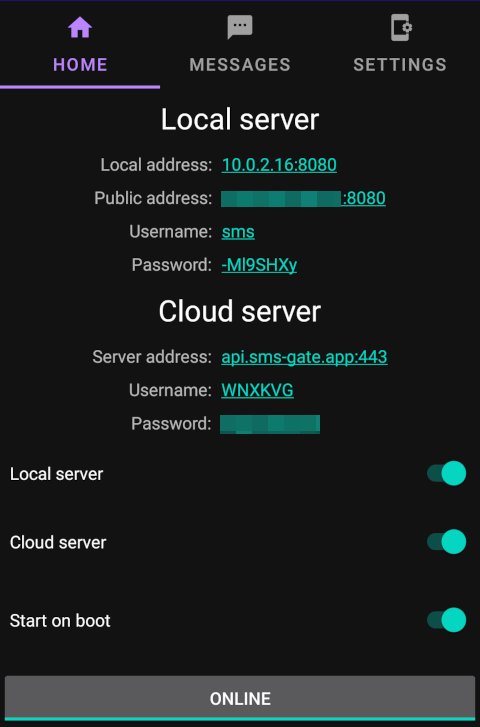
You'll see the main screen with toggles for Local Server and Cloud Server:

The app supports two modes — local and cloud. Both work well, and I'll cover each.
Local Server Mode
Local mode runs an HTTP server directly on the phone. Your backend talks to it over your local network. No cloud dependency, no third-party servers — the simplest setup.
Configure It
 Local server configuration
- Toggle "Local Server" on
- Go to Settings > Local Server to configure:
- Port: 1024–65535 (default
8080) - Username: minimum 3 characters
- Password: minimum 8 characters
- Port: 1024–65535 (default
- Tap "Offline" — it changes to "Online"
- Note the local IP address displayed (e.g.
192.168.1.50)
Your phone is now running an HTTP server. Verify it:
curl http://192.168.1.50:8080/health


open http://192.168.1.50:8080/docs
Send Your First SMS
curl -X POST http://192.168.1.50:8080/message \
  -u "admin:yourpassword" \
  -H "Content-Type: application/json" \
  -d '{
    "textMessage": { "text": "Hello from my SMS gateway!" },
    "phoneNumbers": ["+15551234567"]
  }'
That's it. The phone sends the SMS from its own number, using your mobile plan's rates.
Register a Webhook for Inbound SMS
To receive SMS messages as webhooks:
curl -X POST http://192.168.1.50:8080/webhooks \
  -u "admin:yourpassword" \
  -H "Content-Type: application/json" \
  -d '{
    "id": "my-webhook",
    "url": "http://192.168.1.100:4000/api/sms/webhook",
    "event": "sms:received"
  }'
Replace 192.168.1.100 with your dev machine's local IP. Both devices need to be on the same WiFi network.
Local Mode Gotchas
- AP isolation: Many routers — especially mesh networks and office WiFi — block device-to-device traffic. If you can't reach the phone, check your router settings for "AP isolation" or "client isolation" and disable it. This one caught me out for a good 20 minutes.
- Battery optimisation: Android will kill the background server to save battery. Disable battery optimisation for SMS Gateway in your phone settings. dontkillmyapp.com has device-specific instructions — genuinely useful site.
- Keep it plugged in: During development and in production, the phone lives on a charger. It's not going anywhere.
Cloud Server Mode
Cloud mode is easier to set up and works from anywhere — no local network required. The phone connects to SMS Gateway's cloud relay (api.sms-gate.app), and your backend talks to the same cloud API.
 Cloud server configuration
Enable It
- Toggle "Cloud Server" on in the app
- Tap "Offline" — it connects and registers automatically
- A username and password are auto-generated (visible in the Cloud Server section)
- Note these credentials — you'll need them for API calls
The cloud uses a hybrid push architecture: Firebase Cloud Messaging as the primary channel, Server-Sent Events as fallback, and 15-minute polling as a last resort. It's well thought through.
Send an SMS via Cloud API
curl -X POST https://api.sms-gate.app/3rdparty/v1/messages \
  -u "YOUR_USERNAME:YOUR_PASSWORD" \
  -H "Content-Type: application/json" \
  -d '{
    "textMessage": { "text": "Hello from the cloud!" },
    "phoneNumbers": ["+15551234567"]
  }'
Register a Webhook (Cloud Mode)
Your webhook URL must be HTTPS in cloud mode. For local development, use ngrok:
ngrok http 4000


curl -X POST https://api.sms-gate.app/3rdparty/v1/webhooks \
  -u "YOUR_USERNAME:YOUR_PASSWORD" \
  -H "Content-Type: application/json" \
  -d '{
    "url": "https://abc123.ngrok.app/api/sms/webhook",
    "event": "sms:received"
  }'
Manage Webhooks
curl -u "YOUR_USERNAME:YOUR_PASSWORD" \
  https://api.sms-gate.app/3rdparty/v1/webhooks


curl -X DELETE -u "YOUR_USERNAME:YOUR_PASSWORD" \
  https://api.sms-gate.app/3rdparty/v1/webhooks/WEBHOOK_ID
The Code — Next.js Integration
Here's how I integrated SMS Gateway into a Next.js app with a clean provider abstraction. The idea is simple — swap providers without touching business logic.
Provider Interface
export interface InboundSms {
  from: string;
  body: string;
  receivedAt?: Date;
}

export interface SmsProvider {
  send(to: string, body: string): Promise<string>;
  parseWebhook(req: Request): Promise<InboundSms | null>;
  webhookResponse(replyText?: string): Response;
}

export async function getSmsProvider(): Promise<SmsProvider> {
  const provider = process.env.SMS_PROVIDER || "sms-gate";

  switch (provider) {
    case "sms-gate": {
      const { SmsGateProvider } = await import("./sms-gate");
      return new SmsGateProvider();
    }
    case "console": {
      const { ConsoleProvider } = await import("./console");
      return new ConsoleProvider();
    }
    default:
      throw new Error(`Unknown SMS provider: ${provider}`);
  }
}
SMS Gate Provider
The provider handles both local and cloud API differences:
import type { SmsProvider, InboundSms } from "./provider";

const SMSGATE_URL = process.env.SMSGATE_URL || "http://localhost:8080";
const SMSGATE_USER = process.env.SMSGATE_USER || "";
const SMSGATE_PASSWORD = process.env.SMSGATE_PASSWORD || "";

export class SmsGateProvider implements SmsProvider {
  private headers(): Record<string, string> {
    const auth = Buffer.from(
      `${SMSGATE_USER}:${SMSGATE_PASSWORD}`
    ).toString("base64");
    return {
      "Content-Type": "application/json",
      Authorization: `Basic ${auth}`,
    };
  }

  async send(to: string, body: string): Promise<string> {
    const isCloud = SMSGATE_URL.includes("api.sms-gate.app");
    const endpoint = isCloud
      ? `${SMSGATE_URL}/3rdparty/v1/messages`
      : `${SMSGATE_URL}/api/3rdparty/v1/message`;
    const payload = isCloud
      ? { textMessage: { text: body }, phoneNumbers: [to] }
      : { phoneNumbers: [to], message: body };

    const res = await fetch(endpoint, {
      method: "POST",
      headers: this.headers(),
      body: JSON.stringify(payload),
    });

    if (!res.ok) {
      const err = await res.text();
      throw new Error(`SMS Gate send failed: ${res.status} ${err}`);
    }

    const data = await res.json();
    return data.id || "sent";
  }

  async parseWebhook(req: Request): Promise<InboundSms | null> {
    try {
      const body = await req.json();

      if (body.event !== "sms:received" || !body.payload) {
        return null;
      }

      const { phoneNumber, message, receivedAt } = body.payload;
      if (!phoneNumber || !message) return null;

      return {
        from: phoneNumber,
        body: message,
        receivedAt: receivedAt ? new Date(receivedAt) : new Date(),
      };
    } catch {
      return null;
    }
  }

  webhookResponse(): Response {
    return new Response(JSON.stringify({ ok: true }), {
      headers: { "Content-Type": "application/json" },
    });
  }
}
Webhook Route
A basic webhook handler that receives inbound SMS and replies:
import { NextRequest } from "next/server";
import { getSmsProvider } from "@/lib/sms/provider";

export async function POST(req: NextRequest) {
  const provider = await getSmsProvider();
  const sms = await provider.parseWebhook(req);

  if (!sms) {
    return new Response("Bad request", { status: 400 });
  }

  const { from, body } = sms;


  const user = await findUserByPhone(from);

  if (!user) {
    await provider.send(from, "Hey! Text us back once you've signed up.");
    return provider.webhookResponse();
  }


  console.log(`[SMS from ${from}]: ${body}`);
  await provider.send(from, "Got it — we're on it!");
  return provider.webhookResponse();
}
Console Provider (for Testing)
For local development without a phone:
import type { SmsProvider, InboundSms } from "./provider";

export class ConsoleProvider implements SmsProvider {
  async send(to: string, body: string): Promise<string> {
    console.log(`[SMS -> ${to}] ${body}`);
    return `console-${Date.now()}`;
  }

  async parseWebhook(req: Request): Promise<InboundSms | null> {
    const data = await req.json();
    return {
      from: data.from || "+15550000000",
      body: data.body || "",
      receivedAt: new Date(),
    };
  }

  webhookResponse(): Response {
    return new Response(JSON.stringify({ ok: true }), {
      headers: { "Content-Type": "application/json" },
    });
  }
}
Environment Variables
SMS_PROVIDER=sms-gate


SMSGATE_URL=http://192.168.1.50:8080
SMSGATE_USER=admin
SMSGATE_PASSWORD=yourpassword
Webhook Payload Reference
When someone texts your Android phone, SMS Gateway sends a POST to your webhook URL:
{
  "id": "Ey6ECgOkVVFjz3CL48B8C",
  "webhookId": "LreFUt-Z3sSq0JufY9uWB",
  "deviceId": "your-device-id",
  "event": "sms:received",
  "payload": {
    "messageId": "abc123",
    "message": "Hello!",
    "sender": "+15551234567",
    "recipient": "+15559876543",
    "simNumber": 1,
    "receivedAt": "2026-04-01T12:41:59.000+00:00"
  }
}
Available Events
| Event | Description |
|---|---|
sms:received |
Inbound SMS received |
sms:sent |
Outbound SMS sent |
sms:delivered |
Outbound SMS confirmed delivered |
sms:failed |
Outbound SMS failed |
system:ping |
Heartbeat — device still alive |
Webhook Security
SMS Gateway signs webhook payloads with HMAC-SHA256. Two headers are included:
X-Signature— hex-encoded HMAC-SHA256 signatureX-Timestamp— Unix timestamp used in signing
import crypto from "crypto";

function verifyWebhook(
  signingKey: string,
  payload: string,
  timestamp: string,
  signature: string
): boolean {
  const expected = crypto
    .createHmac("sha256", signingKey)
    .update(payload + timestamp)
    .digest("hex");
  return crypto.timingSafeEqual(
    Buffer.from(expected, "hex"),
    Buffer.from(signature, "hex")
  );
}
Retry Behaviour
If your server doesn't respond 2xx within 30 seconds, SMS Gateway retries with exponential backoff — starting at 10 seconds, doubling each time, up to 14 attempts (~2 days). Solid default behaviour, you don't need to configure anything.
Testing the Full Flow
1. Start Your Dev Server
npm run dev
2. Expose It (Cloud Mode)
ngrok http 4000
3. Register the Webhook
curl -X POST https://api.sms-gate.app/3rdparty/v1/webhooks \
  -u "USERNAME:PASSWORD" \
  -H "Content-Type: application/json" \
  -d '{
    "url": "https://abc123.ngrok.app/api/sms/webhook",
    "event": "sms:received"
  }'
4. Send a Text
Text your Android phone from another phone. You should see:
- SMS Gateway receives the text
- Webhook fires to your ngrok URL
- Your Next.js server processes it
- A reply SMS is sent back via the API
- The sender's phone receives the reply
That moment when the reply lands on your phone — genuinely satisfying.
Test Without a Phone
SMS_PROVIDER=console npm run dev

curl -X POST http://localhost:4000/api/sms/webhook \
  -H "Content-Type: application/json" \
  -d '{"from": "+15551234567", "body": "Hello"}'
Production Considerations
The Phone Setup
- Dedicated device: Use a cheap Android phone ($100–200) with a prepaid SIM. It sits on a charger plugged into power and WiFi. That's its whole life now.
- Battery optimisation off: Disable battery optimisation for SMS Gateway or Android will kill it. dontkillmyapp.com for your specific device.
- Auto-start: Enable "start on boot" in the SMS Gateway app settings.
- Monitoring: Register a
system:pingwebhook to alert if the device goes offline.
Local vs Cloud
| Local | Cloud | |
|---|---|---|
| Latency | Lower (direct) | Slightly higher (relay) |
| Network | Same network required | Works from anywhere |
| Privacy | Messages never leave your network | Messages transit through SMS Gateway's servers |
| Reliability | Depends on your network | Adds FCM/SSE redundancy |
| Cost | Free | Free (community tier) |
I use cloud mode in production because my server's hosted on Railway and can't reach the phone's local network. For development on the same WiFi, local mode is simpler and faster.
Cost Comparison
| Provider | SMS Cost | Monthly (1,000 msgs) |
|---|---|---|
| Twilio | ~$0.05/msg | ~$50 |
| SMS Gateway + Prepaid SIM | $0/msg (unlimited plan) | ~$8 (plan cost) |
That's an 80%+ saving, and it scales linearly — 10,000 messages a month is still just your plan cost.
It's worth knowing this is a whole category now. httpSMS and textbee do similar things. I went with SMS Gateway for Android because the local mode is properly useful for development, the documentation is solid, and it's actively maintained — v1.56.0 dropped in March 2026.
For an MVP, the maths is obvious. A $200 phone and an $8/month plan gets you a programmable SMS gateway that you fully control. No per-message fees, no carrier contracts, no vendor lock-in. If you outgrow it, swap the provider interface to Twilio and you're done — that's why the abstraction exists.
Links: