I like Android TV. It runs every app I care about, it’s cheap on a Chromecast, and it’s built into plenty of TVs. What I don’t like is ads.
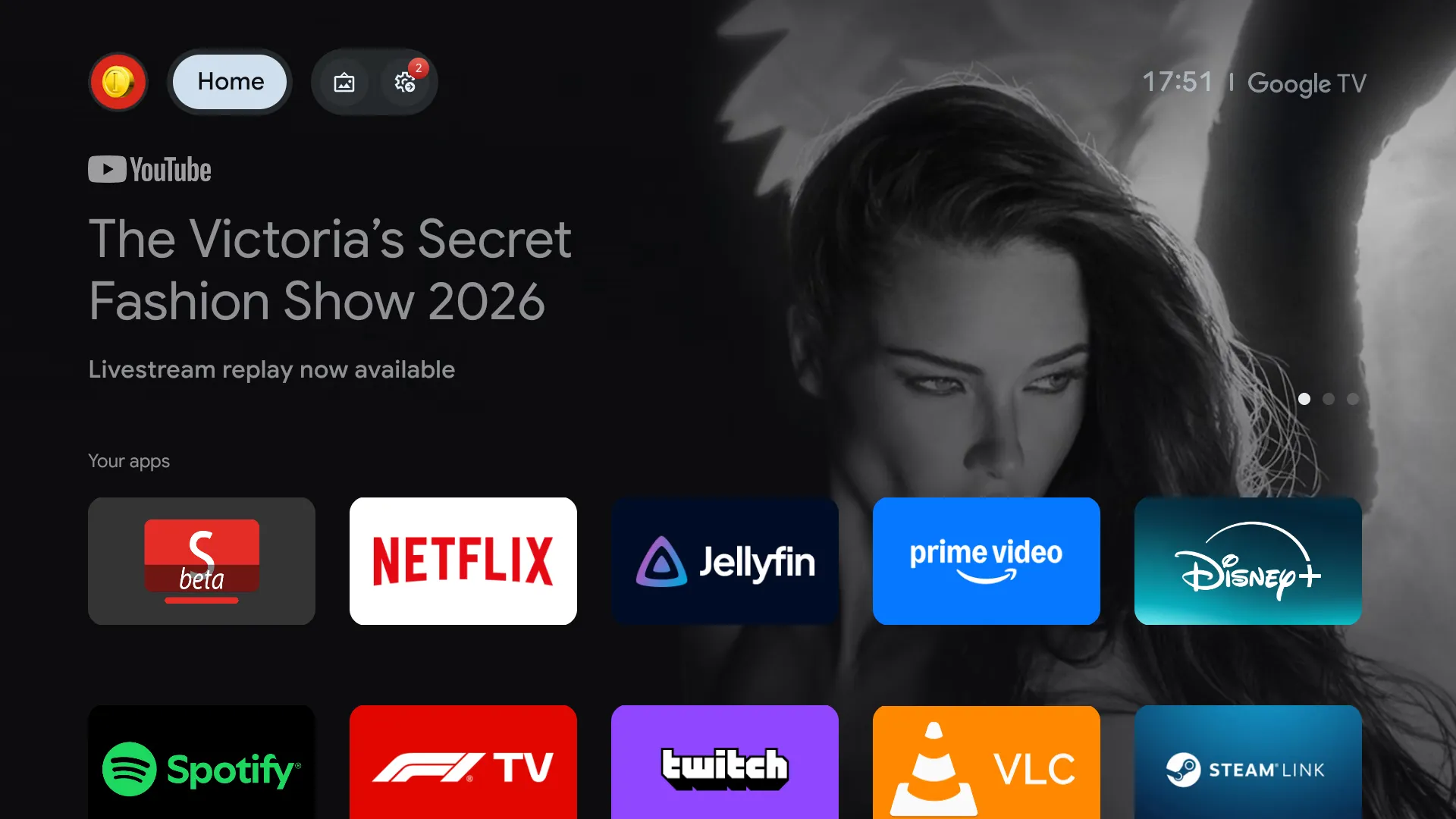
Google TV, the default interface on most Android TV devices, puts a large banner at the top of the home screen promoting whatever Google wants you to watch next. Apps only mode is supposed to strip the home screen down to your apps, but the banner stays. There’s no setting to change the launcher, and YouTube adds its own ads on top.
 Before: Google TV, in Apps only mode
After setting up a few devices around the house, I landed on a setup with no ads at all, and a nicer interface to go with it.
The setup
- Projectivy Launcher replaces the home screen. It shows your apps and nothing else, and it’s very customizable.
- SmartTube replaces YouTube, with no ads, a better interface, and SponsorBlock built in. I still pay for YouTube Premium to support creators, but I vastly prefer SmartTube to the official app.
- Wholphin is my preferred Jellyfin client, for its UI and customization options.
- Button Mapper remaps the remote, so the YouTube button opens SmartTube.
 After: Projectivy Launcher
 SmartTube, blurred
I’ve set this up on two Chromecasts with Google TV and a Hisense TV, and it should work on most Android TV devices.
Tutorial
Tip: Hand this article to an AI agent (like Claude Code) and have it guide you through the setup. It can run the ADB commands for you and adapt them to your device.
Install the apps first. Projectivy, Wholphin, and Button Mapper are on the Play Store, and SmartTube can be sideloaded with Downloader. The rest needs ADB.
Connecting ADB
Enable Developer options by clicking Settings → System → About → Android TV OS build 7 times. Then, in Developer options, enable Wireless debugging and choose Pair device with pairing code:
adb pair <ip>:<pairing-port> <code>
adb mdns services # Find the connect port
adb connect <ip>:<connect-port>

D=<ip>:<connect-port> # Used in the commands below
Wireless debugging only works over Wi-Fi. If your device doesn’t have it (like my Hisense TV), enable USB debugging instead and connect with adb connect <ip>:5555.
Replacing the launcher
Projectivy has an Override current launcher option, but the stock home screen still flashes before it. Instead, disable the stock launcher and the package that restores it, then set Projectivy as the home app:
adb -s $D shell pm disable-user --user 0 com.google.android.apps.tv.launcherx
adb -s $D shell pm disable-user --user 0 com.google.android.tungsten.setupwraith
adb -s $D shell cmd package set-home-activity com.spocky.projengmenu/.ui.home.MainActivity
On a TV, the stock launcher may also handle switching HDMI inputs, so check that still works afterward.
Replacing YouTube
Once SmartTube is set up, remove the official app:
adb -s $D uninstall com.google.android.youtube.tvIf it’s built into the firmware (DELETE_FAILED_INTERNAL_ERROR), use adb -s $D shell pm uninstall --user 0 com.google.android.youtube.tv instead.
Remapping the remote
Button Mapper and Projectivy both need their accessibility services enabled. This replaces the whole list, so check the current one first with adb -s $D shell settings get secure enabled_accessibility_services and keep anything else you use:
adb -s $D shell settings put secure enabled_accessibility_services \
  'flar2.homebutton/a.i:com.spocky.projengmenu/com.spocky.projengmenu.services.ProjectivyAccessibilityService'
adb -s $D shell settings put secure accessibility_enabled 1
Use Projectivy’s full component name, as above. With the short form (
com.spocky.projengmenu/.services...), Projectivy shows Enabled: No even though the service is running.
Android sometimes turns accessibility services off. Granting Button Mapper WRITE_SECURE_SETTINGS lets it turn itself back on, and exempting it from battery optimization keeps it responsive:
adb -s $D shell pm grant flar2.homebutton android.permission.WRITE_SECURE_SETTINGS
adb -s $D shell dumpsys deviceidle whitelist +flar2.homebutton
Then, in Button Mapper, map the YouTube button to SmartTube.
Cleaning up
While you’re connected, speed up animations and disable some Google apps you probably won’t use:
for k in window_animation_scale transition_animation_scale animator_duration_scale; do
  adb -s $D shell settings put global $k 0.75
done

for p in com.google.android.videos com.google.android.play.games \
         com.google.android.feedback com.google.android.partnersetup; do
  adb -s $D shell pm disable-user --user 0 $p
done
Everything can be undone with adb shell pm enable <package> (or adb shell cmd package install-existing <package> for YouTube). Turn Wireless debugging off when you’re done.
That’s it: no banner, no ads, and a remote that opens the apps you actually use.